


AI Photo Enhancer - Evoke
4.61.04K Reviews
App Specs
- Version
- 3.12.0-26073181
- Updated On
- License
- Free
- Downloads
- 5,000,000+
- Developer
- Guru AI Lab
- Categories
- Photography
- Platform
- Android
Screenshots
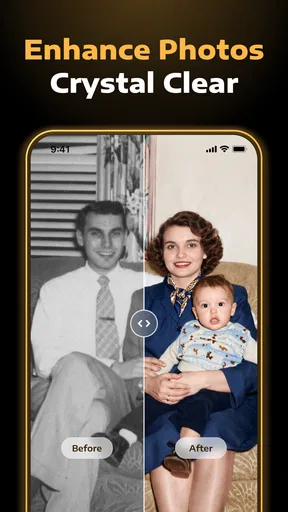




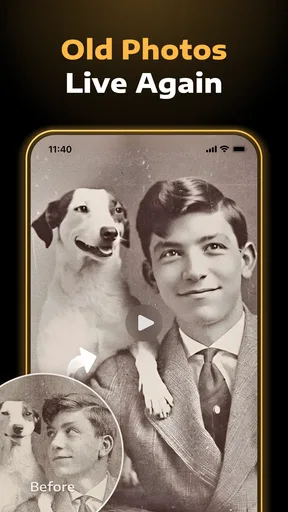
 Analysis by AppCompare
I find AI photo enhancers most useful when I have one specific problem to solve: an old print looks faded, a scan has scratches, or a cherished picture is too soft to share comfortably. AI Photo Enhancer - Evoke is aimed at that kind of rescue, as well as everyday touch-ups. The important thing is to treat its results as a fresh interpretation of a photograph, not a faithful recovery of detail that was never captured.
Start with the photo, not the effect
Before editing, make a copy of the original image and work on that duplicate. It gives you a clean reference if an enhancement makes faces look unusually smooth or colors drift away from what you remember. For a printed photograph, scan or photograph it in even light, keep the camera parallel to the print, and avoid adding glare; an app can work with the image it receives, but it cannot reliably undo every problem introduced during capture.
For an old family picture, I would first try a restrained enhancement and inspect the eyes, hair, and fine edges at a comfortable zoom. Those details reveal whether added sharpness is helping or simply drawing attention to blur and grain. If the picture includes handwriting, jewelry, or a distinctive background, compare those areas too. A convincing face alone does not mean the whole restoration is accurate.
Where restoration needs a light touch
The app’s focus on older images makes it tempting to push every repair as far as possible. I would resist that with damaged or very small photos. Sharpening can make a soft image look more defined, but aggressive processing may create crisp-looking textures that were not in the original. Colorizing a monochrome picture can make it more vivid, yet the colors are an estimate, not proof of what someone wore or what a room looked like.
That distinction matters when you are restoring a family archive. If historical accuracy is important, keep the untouched scan and consider the enhanced copy a convenient viewing version. For a picture intended as a personal gift or a social post, a more imaginative result may be perfectly welcome. The right setting depends on whether you value faithful documentation or a pleasing visual finish.
Choosing it over a conventional editor
Compared with a standard photo editor, an AI-focused tool is appealing when the image needs more than a simple brightness or crop adjustment. Traditional editing gives you direct control and is often the better route when you already know what needs changing. Evoke is more suited to trying an automated improvement on a worn or imperfect image, then deciding whether its interpretation works for you.
I would not replace a general-purpose editor with it for every picture. If the main task is straightening a horizon, removing a distracting object, or matching a set of photos to a particular look, a conventional editor with precise controls may be more predictable. A practical workflow is to use an enhancer for the difficult source image, save the result, and make any final framing or tonal corrections elsewhere.
Worth Reading Before You Choose

Flipboard Shows What News Apps Must Do Beyond the Feed

Switching to Android Auto Means Rethinking Your Driving Routine

Google Calendar Makes a Crowded Week Easier to Manage

Ludo King Makes the Most of the Minutes Between Plans

Baby Panda World Brings Quick Play to Modern Phones, but Its Game Library Feels Busy

ESPN’s Live Game View Makes Following Close Games Easier
Who will get the most from it
This app makes the most sense for someone who has old pictures on a phone and wants a straightforward way to see whether they can be improved. It can also suit casual users who want to test a quick enhancement without learning a complex editing workflow. If you are sorting a box of family prints, try a few representative images first rather than processing everything at once; that will show you whether the app’s style suits the collection.
On the other hand, I would look elsewhere if you need exact, manual control over every repair or require historically reliable color decisions. It is also not the right fix for a photo that is badly out of focus, heavily obstructed, or missing important information. AI can make an image more presentable, but it can also fill gaps with plausible-looking guesses. Keep the original whenever the details matter.
A useful everyday example is finding a faded photo of a grandparent before a family gathering. I would make a clean digital copy, enhance that copy, and compare it with the original before sharing or printing it. If the face looks natural but the background becomes strange, I would keep the result for casual viewing and avoid presenting it as an exact restoration. That small check can prevent an attractive edit from quietly changing the memory.
Using Evoke with realistic expectations
In today’s digital world, our phones have become the go-to device for capturing memories. But let’s be honest, not every photo turns out the way we envision. Enter AI Photo Enhancer - Evoke, an app that promises to transform your ordinary pictures into stunning visuals. I decided to give it a whirl and here’s what I found.
First Impressions
When I first opened the app, I was greeted by a sleek and intuitive interface. It’s like the app designers knew I wasn’t in the mood for a complicated tutorial. Everything was laid out simply, making it easy to dive right in. The main screen offers options to enhance photos, apply filters, and adjust settings. What caught my eye was the promise of AI-driven enhancement. I mean, who wouldn’t be intrigued by a little artificial intelligence magic?
Enhancing Photos
Let’s talk about the meat and potatoes of this app: the photo enhancement feature. I uploaded a slightly blurry picture from my last vacation and within seconds, the app worked its magic. The AI feature sharpened the image, balanced the colors, and even managed to reduce some of the noise. I was genuinely impressed. It’s like having a professional photographer in your pocket, minus the hefty fee.
The app also offers a slider that shows a before and after comparison. This is a neat feature because sometimes the changes are so seamless, it’s easy to forget how much better the new photo looks compared to the original.
Filters and Adjustments
Beyond basic enhancements, AI Photo Enhancer - Evoke provides a variety of filters and adjustments. Whether you’re going for a vintage look or a vibrant pop of color, there’s something here for everyone. I particularly enjoyed the "dreamy" filter which added a soft, ethereal quality to my selfies – perfect for my Instagram feed.
If filters aren’t your thing, the app also lets you manually adjust brightness, contrast, saturation, and more. It’s user-friendly, so even if you’re not a photo editing pro, you can still achieve great results.
Performance and Usability
Performance-wise, the app runs smoothly without any noticeable lags. Even when editing high-resolution images, the processing time is quick. The app doesn’t hog too much of your phone’s resources, which is always a plus. I tested it on both Android and iOS, and it performed equally well on both platforms.
Speaking of usability, the app’s design is intuitive. I didn’t have to spend hours figuring out how to use each feature, which is something I truly appreciate. The developers clearly focused on creating a user-friendly experience.
Additional Features
One nifty feature I stumbled upon is the batch processing option. If you have a series of photos from a single event and want them all enhanced in the same way, this feature is a lifesaver. No more editing each photo individually – just select the ones you want and let the app do its thing.
Another cool addition is the "restore" function. If you ever feel like you’ve gone overboard with the edits, you can easily revert to the original image. It’s a handy feature for those of us who occasionally get carried away with photo enhancements.
Checking setup and recovering a stuck edit
If an image does not appear as expected, I would first check the basics rather than repeatedly applying the same edit. Confirm that I selected the intended photo, that the source image opens correctly on the device, and that I am looking at the saved result rather than the original preview. Closing and reopening the app can also be a sensible first step if the screen seems unresponsive.
For a photo that appears unusually soft or distorted after processing, I would return to the untouched copy and try a less ambitious pass. Working from the original avoids stacking one interpretation on top of another. If a batch produces mixed results, review the images individually instead of assuming one setting will suit every shot; a dim indoor portrait and a bright outdoor picture can need very different treatment.
There is also a practical difference between a bad enhancement and a bad source. If the image is tiny, badly blurred, or covered by glare, the app may have little reliable information to work with. Try a better scan or a clearer copy before judging the tool. For old prints, even lighting and a clean camera lens can make a noticeable difference before editing begins.
Cost, audience, and the final call
AI Photo Enhancer - Evoke is a free photography app from Guru AI Lab, with optional in-app purchases priced from $3.99 to $59.99 per item. It has a 4.4 average from around 41,000 ratings and has passed one million installs. It is rated Teen, first released on June 30, 2023, and its current version is 3.4.2-26011560; Android users need version 7.0 or later. I would try the free experience on a handful of photos before deciding whether any paid option is worth it for my own routine.
That approach is especially useful if you only need to repair a few keepsakes: a paid purchase may be unnecessary if the results do not improve the images you care about. If you regularly revisit old photographs, the convenience could matter more, but I would still compare the output with the original before committing to a large restoration project. The app is best judged on your actual photos, not on the promise that every damaged image can be made clear.
Overall, I see Evoke as a friendly starting point for giving worn or imperfect pictures another look, rather than a replacement for careful editing or a guarantee of archival accuracy. Guru AI Lab’s app is easy to approach, and its enhancement tools can be satisfying when the source image has enough detail to work with. I would recommend it to casual restorers and people curious about AI-assisted photo editing, while anyone who needs precise repairs should keep a manual editor in the toolkit. Make a copy, compare thoughtfully, and keep the untouched original close by.
Pros
- Intuitive interface for easy navigation.
- High-quality photo enhancements in seconds.
- Supports a wide range of image formats.
- Batch processing saves time for users.
- Regular updates with new features.
Cons
- Requires a stable internet connection.
- Limited free version features available.
- Subscription model may be costly.
- Large file sizes can slow down processing.
- Occasional bugs in the latest update.
FAQs for AI Photo Enhancer - Evoke
What features does AI Photo Enhancer - Evoke offer?
AI Photo Enhancer - Evoke provides advanced features such as automatic photo enhancement, noise reduction, color correction, and detail enhancement. It uses AI technology to analyze and improve image quality, ensuring that even low-resolution or poorly lit photos look vibrant and crisp. The app also offers batch processing for handling multiple images at once.
Is AI Photo Enhancer - Evoke easy to use for beginners?
Yes, AI Photo Enhancer - Evoke is designed with user-friendliness in mind. Its intuitive interface allows users of all skill levels to enhance their photos with just a few taps. The app provides guided tips and tutorials, making it easy for beginners to understand and utilize its powerful features effectively.
Does AI Photo Enhancer - Evoke support different file formats?
AI Photo Enhancer - Evoke supports a wide range of image file formats, including JPEG, PNG, and TIFF. This versatility ensures that users can enhance any photo they have, regardless of its original format. The app also maintains the original quality of images during the enhancement process.
Is there a cost associated with using AI Photo Enhancer - Evoke?
AI Photo Enhancer - Evoke offers both a free version with basic features and a premium version that unlocks additional advanced tools. The premium version requires a subscription, which can be billed monthly or annually. The free version is sufficient for casual users, while professionals might find the premium features beneficial.
How secure is my data when using AI Photo Enhancer - Evoke?
AI Photo Enhancer - Evoke prioritizes user privacy and data security. The app does not store or share any photos or personal information without user consent. All processing is done locally on your device, ensuring that your data remains private and secure from external access.


